
MiTS lets you apply a single, batch move or rotation to the entities you currently have selected, such as Survey Points, Platforms, Boundaries, Catchments, Nodes (Sump/ Manhole/ Fitting), and Edges (Drain/ Sewer/ Water Pipe).
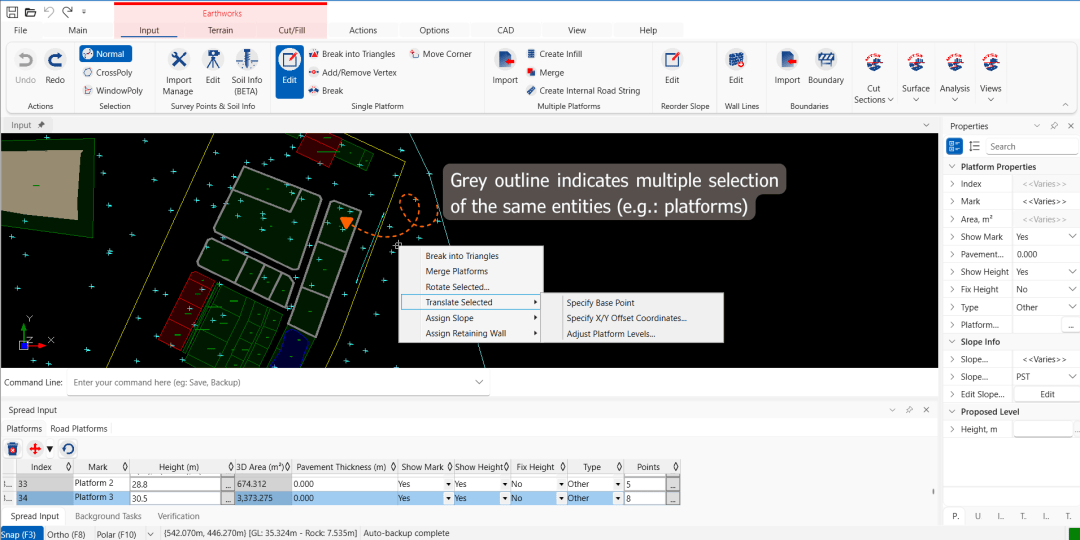
The move and rotate operation can be accessed from the Spread Input toolbar or from the right-click context menu on the drawing canvas. The methods are:
-
Translate Selected
- Specify Base Point
- Specify X/Y Offset Coordinates
- Adjust Survey Point Levels
-
Rotate Selected
 Move and Rotate button from Spread Input toolbar
 Move and Rotate selected entities using right-click context menu
Translation (X/Y) #
Translation moves every selected entity by the same offset in the plan view. The X/Y movement is applied to all selected entities at once, and Z values (elevation/levels) are remain unchanged.
Specify Base Point #
-
Pick a base point (or type its absolute
X,Ycoordinates in meter and press Enter) -
Click a second point (or enter the destination
X,Ycoordinates or relative displacement in meter).- Type
3,4and press Enter to specify an absolute destination at X = 3m, Y = 4m. - Type
@3,4and press Enter to move the selection 3m in X-direction and 4m in Y-direction from the base point. Negative values move in the opposite direction; for example,@-3,4moves -3m in X and +4m in Y.
- Type
Specify X/Y Offset Coordinates… #
- Enter the X and Y offset directly in a dialog, without clicking on the drawing

Z level Adjustment #
The Z level adjustment is a vertical move applied uniformly to the selection. This is the only one of the three operations that changes an entity’s Z value.
Each entity type exposes its own level adjustment, since the “level” means something different for each:
- Adjust Survey Point Levels… for Survey Points
- Adjust Platform Levels… for Platforms
- Adjust Invert Levels… for Edge (Drain/ Sewer/ Water Pipes)
- Adjust Ground Levels… for Nodes (Sump/ Manhole/ Fitting)
Catchments and Boundaries do not offer a Z adjustment, since they have no level concept.
Rotation #
Rotation turns the whole selection around one common base point by the same angle.
Rotate Selected currently accepts the angle only by pointing: click the base point, then click a second point, and the angle is taken from that second point’s direction relative to the base point.
Batch behaviour #
All move and rotate operations treat the current selection as one batch:
- Apply to one or many selected entities at once.
- Commit as a single undo action, so clicking the Undo button once restores every modified coordinate.
- Use one common offset, base point, or angle across the whole selection.
Drain, sewer and water networks: move the selection or the whole network #
For node and edge (pipe) entities in drain, sewer, and water networks, Translate Selected and Rotate Selected offer an extra option before the operation runs: whether to move just the selected entities, or the whole connected network they belong to.
- Move Selected Entities Only — moves or rotates only the entities you have selected.
- Move Entire Network — moves or rotates the entire connected network that the selected entities belong to. Separate or disconnected networks are not affected.
See How to Move Utility Network user guide for detailed instructions.
How this differs from the Action-tab commands #
The same underlying operations are available on the Action tab for whole drawing categories (Move Tab and Rotate Entity Feature). The main difference is the operation scope: the Action-tab commands ask you to choose which module or category to move, while these selection-scoped commands act directly on your current selection. The prompts, preview, and Undo behaviour are consistent with the corresponding commands available from the Action tab.

I’m the Benevolent Dictator for Life for MiTS Software cum Editor of this website. Read more here.
You can also contact me at soonhui@mes100.com


